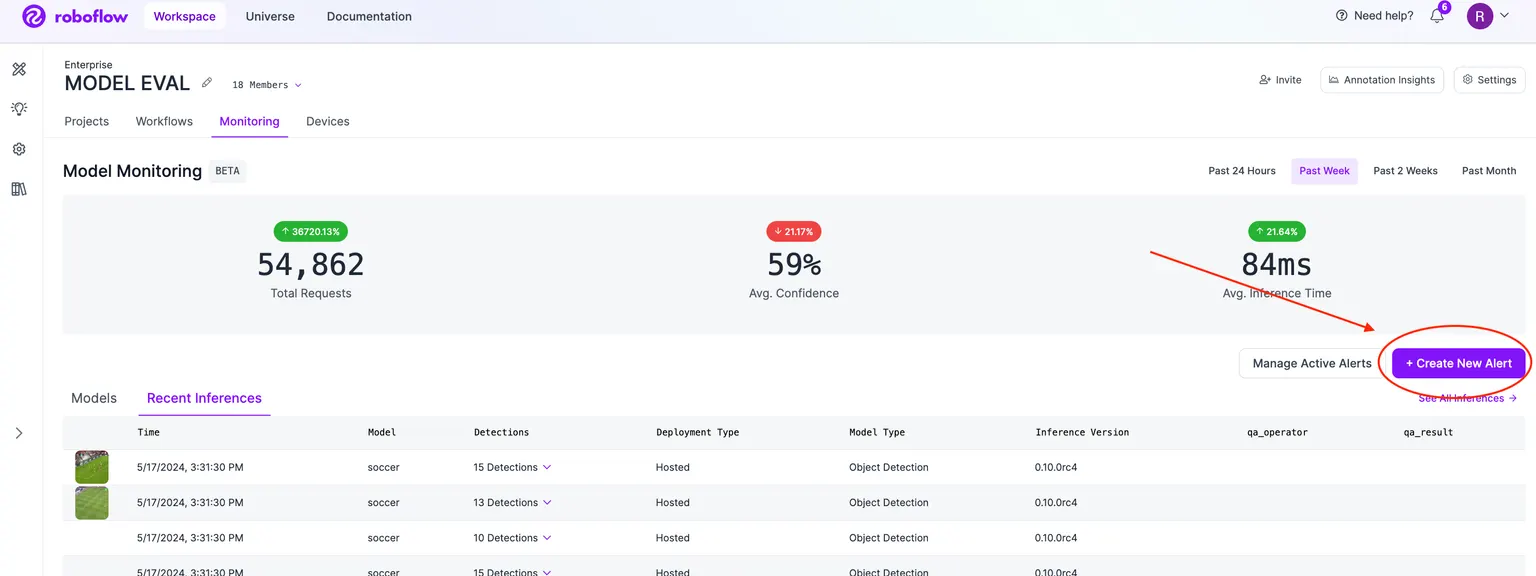
The Model Monitoring dashboard allows you to set up notifications for anomaly detection. To create an alert, first navigate to the model monitoring dashboard.
Click the "Create New Alert" button just above the list of models.
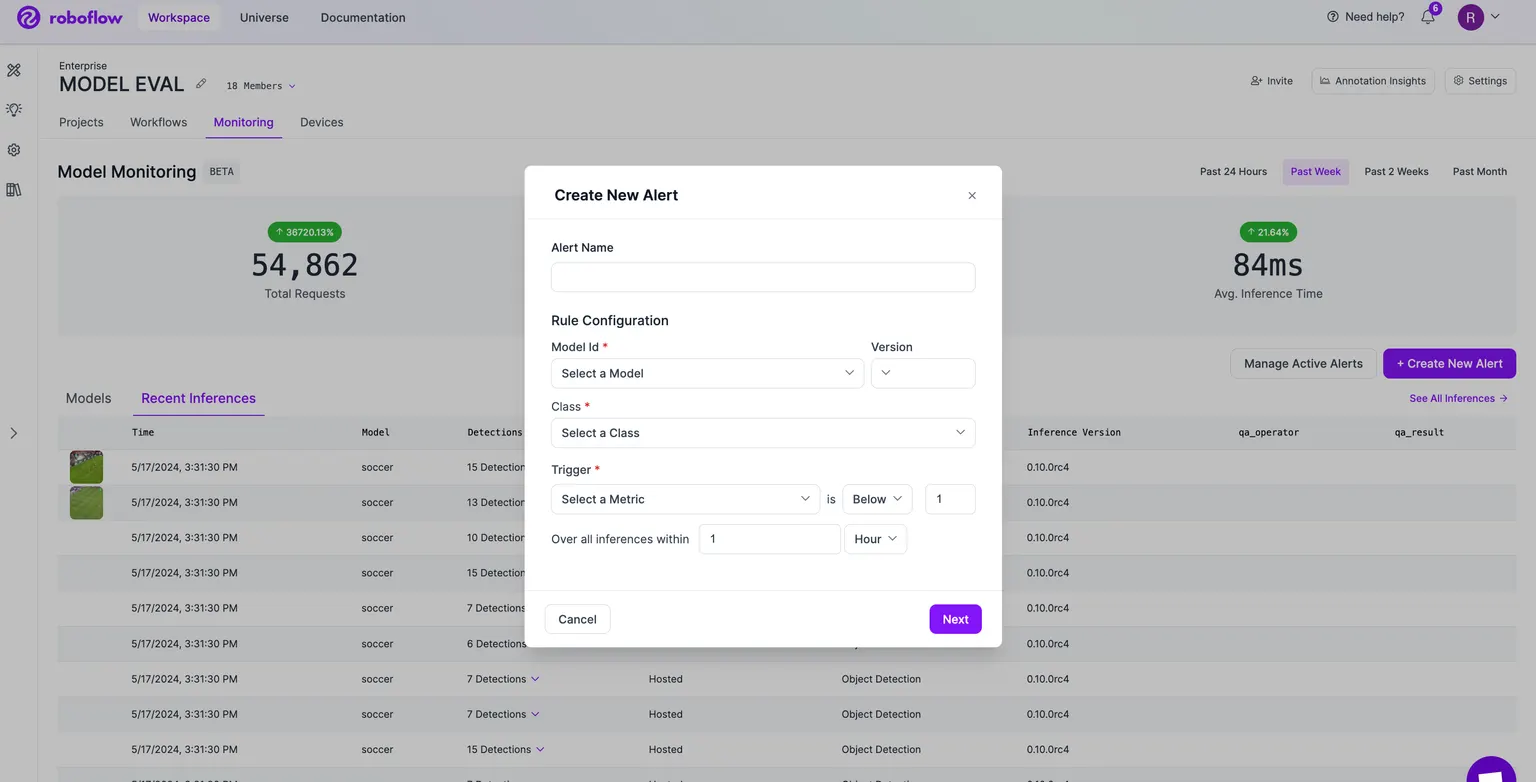
- Name your alert. Give your alert a name. This is optional but highly recommended so that you can quickly identify your alert later
- Configure a Rule. First, choose the model that you would like to create an alert for. Note that only models with a trained version will appear in the dropdown. Furthermore, if your workspace has SSO rules configured, then only models that you have access to will appear.
- Choose a version. Then choose a version of that model. If no version is selected, then all inferences to all of the selected model's versions will be in scope.
- Choose a class. Select a class that you would like to target for your alert.
- Choose a metric. Now you can select a metric and a threshold. Anytime your inferences reach the threshold level, they will trigger an alert.
- Choose an alert window. You can define an alert window. The alert window is a group of inference results that are used to determine whether or not to trigger an alert. For example, if you choose a window of "30 minutes", then only inference results made in the last 30 minutes (on a rolling basis) would be used to determine if the threshold for triggering the alert has been reached.
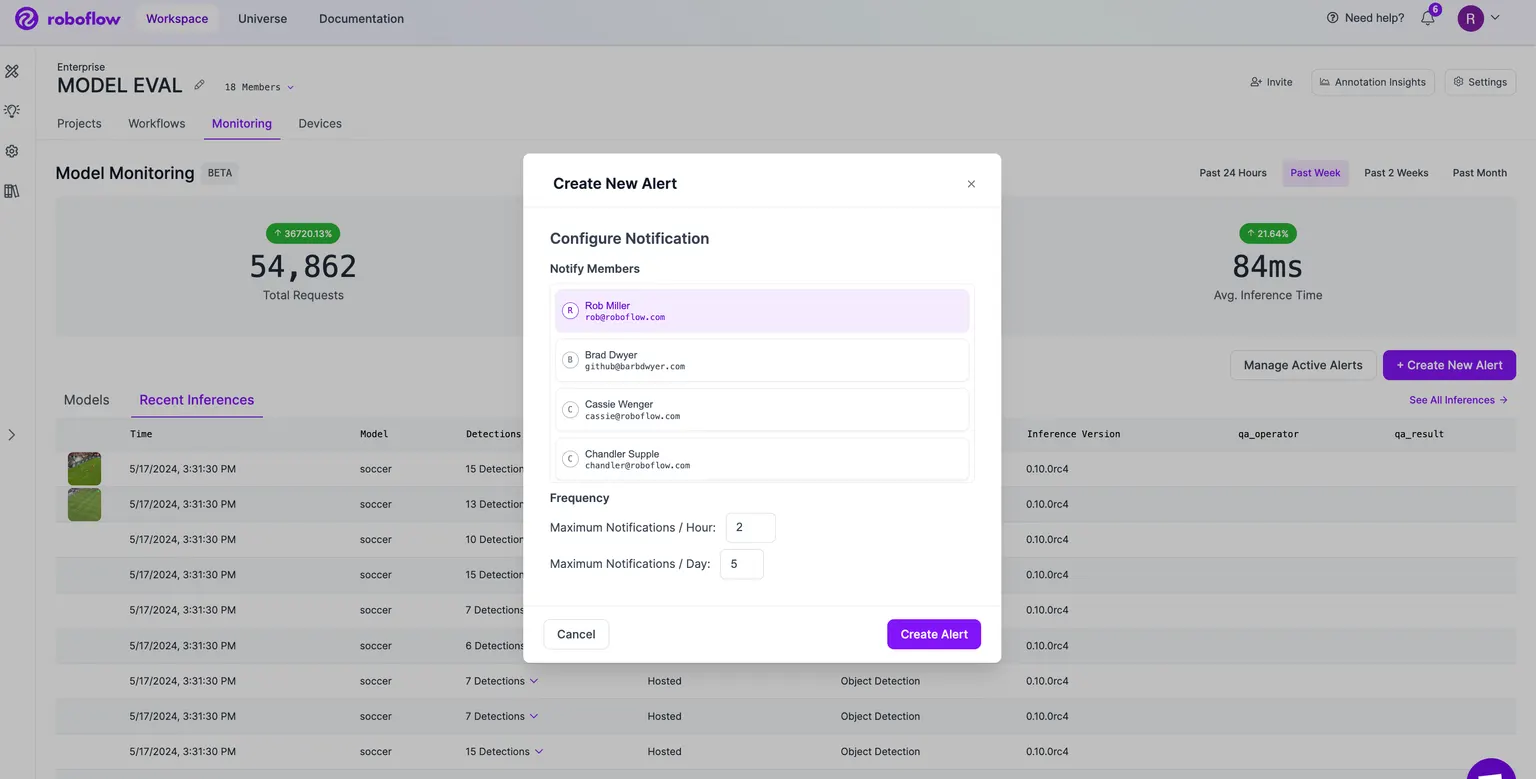
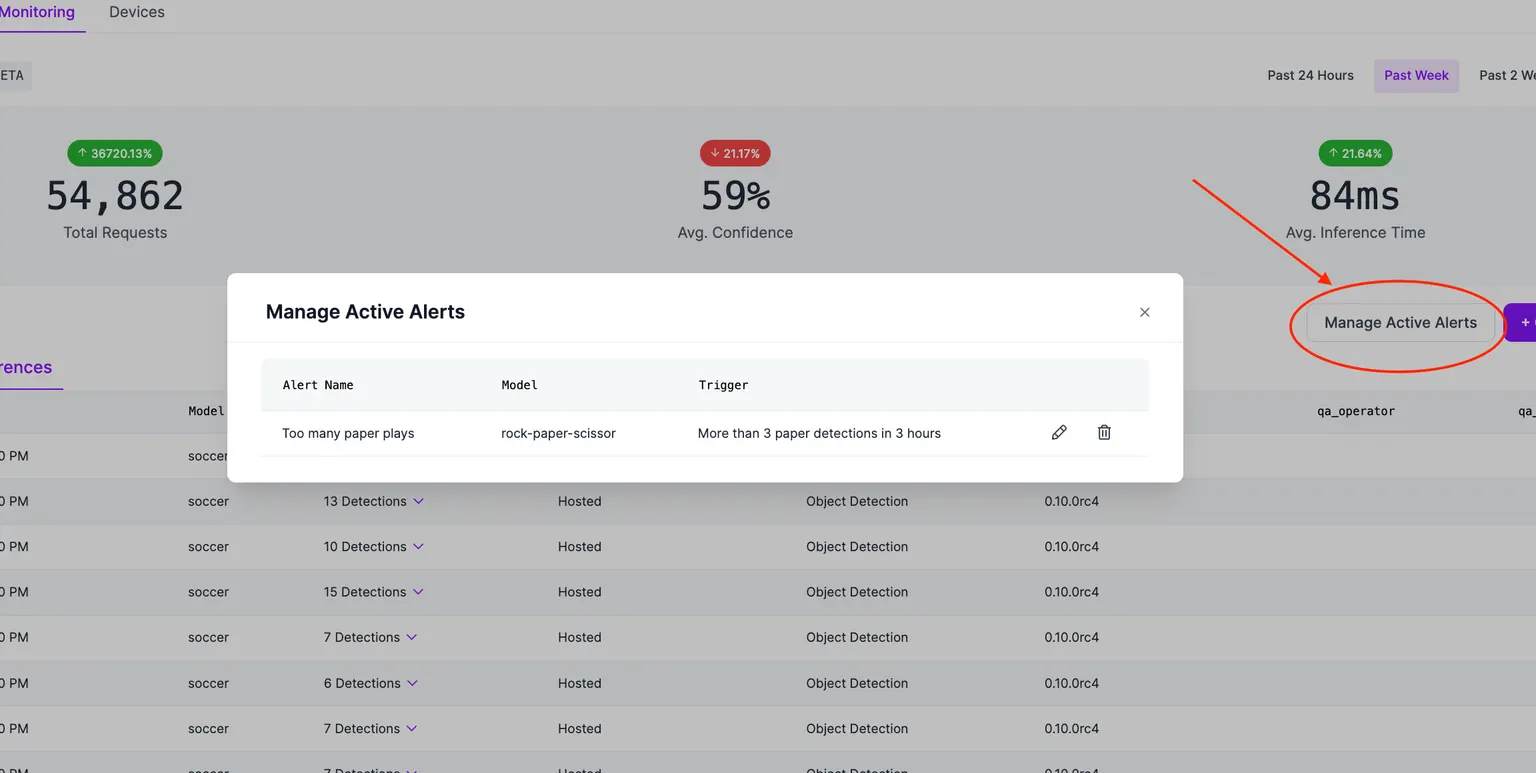
Click submit and your alert will be created. To see a list of active alerts that you have configured, you can click the "Manage Active Alerts" button. From here, you can edit and delete existing alerts.