About
This page covers how to find specific Vision Events - the timestamped records of what your deployed models observed - by filtering and searching them in the Vision Events dashboard or programmatically through the REST API. Narrow results by date range, event type, device, stream, workflow, detected class, or feedback status to audit production behavior and build reports. You can also ask the Roboflow Agent questions about your events in natural language.
Web App
Query and Filter Events
Find specific events using filters in the Vision Events dashboard or query them programmatically via the REST API.
Browse Events in the Dashboard
Select a Use Case
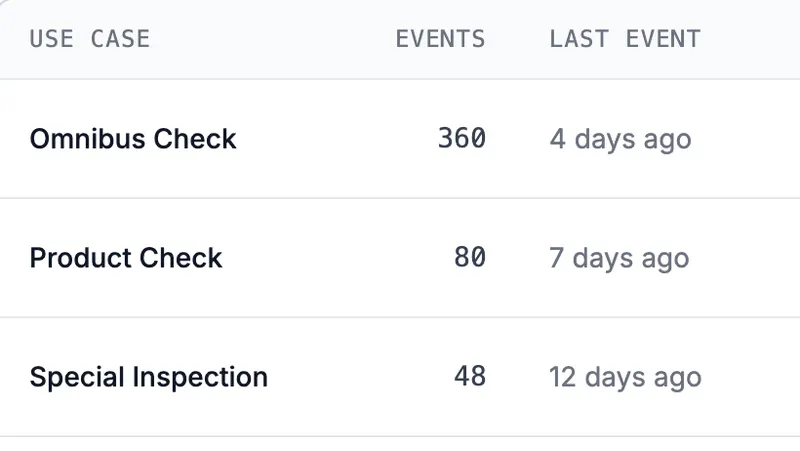
From the Vision Events page, click on a Use Case to view its events. Events are displayed in reverse chronological order.
Filter Events
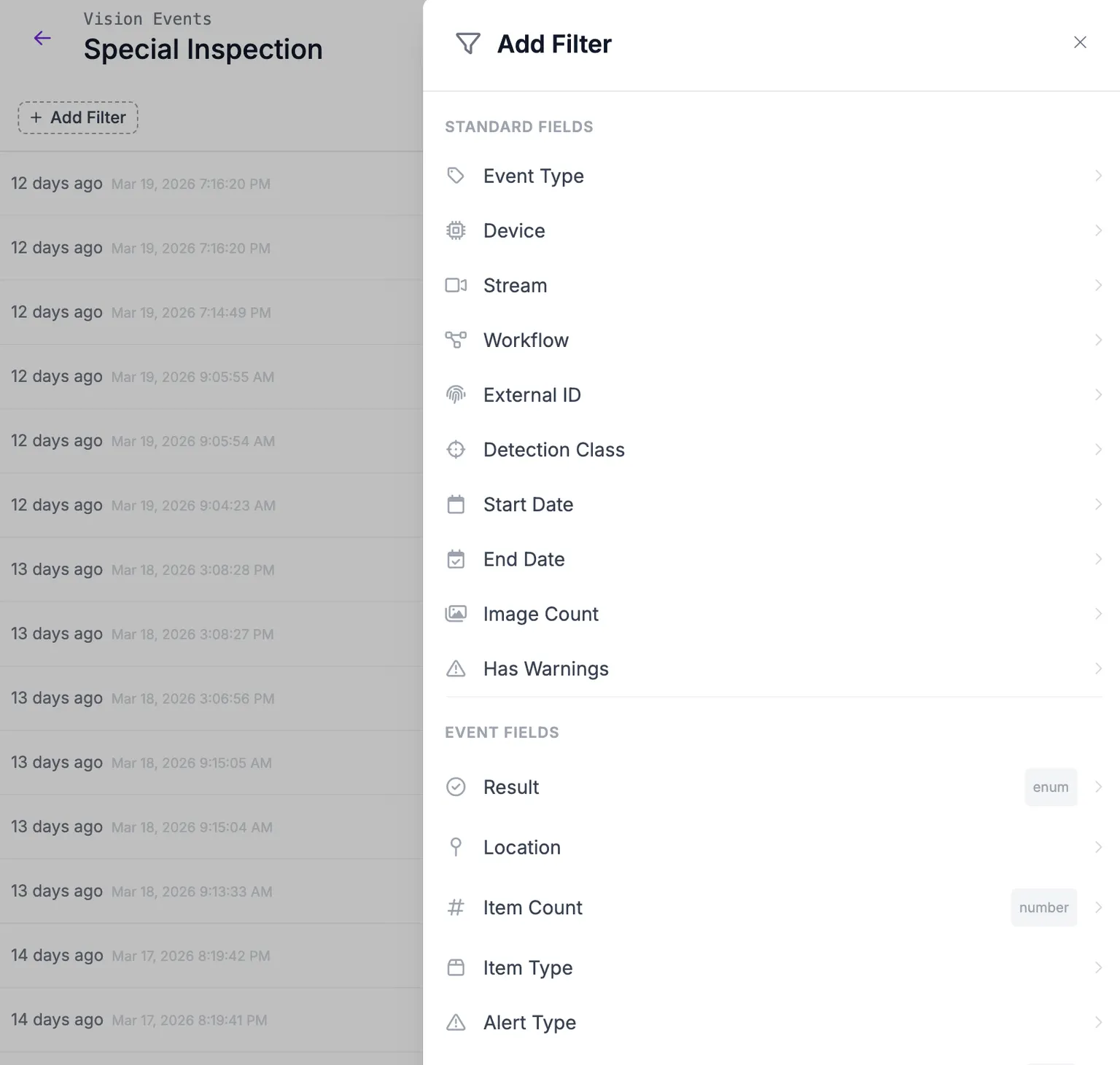
Use the filter controls at the top of the events list to narrow results by:
- Date range - start and end timestamps
- Event type - quality_check, inventory_count, safety_alert, custom, operator_feedback
- Device - filter by device ID
- Stream - filter by stream or camera ID
- Workflow - filter by the workflow that generated events
- Detection - filter by a detected object class, with an optional confidence threshold
- Feedback status - correct, incorrect, inconclusive, or no feedback
- Custom metadata - filter by any custom metadata field and value
- Warnings - show only events that had ingestion warnings
You can also click on values in the event detail sidebar (such as device ID, stream, quality check result, or custom metadata values) to quickly add them as filters.
Filter chips are editable -- click on any active filter chip to modify its value or operator without having to remove and re-add it.
When filters are applied, a total count of matching events is displayed at the top of the results list. This count updates independently of the event list, so you can see how many events match your filters even while events are still loading.
View Event Details
Click on any event in the list to view its full details:
- The source image and any output images
- All source metadata (device, stream, workflow)
- Object detections, classifications, and segmentations with their confidence scores
- Event-type-specific data (ex: pass/fail result, item count, alert severity)
- Custom metadata key-value pairs
Draw Detections
When an event contains prediction data (object detections, instance segmentations, or keypoints), a "Draw Detections" checkbox appears above the image. Enable it to overlay bounding boxes, segmentation polygons, and labels with confidence scores on top of the source image.
This is useful when your pipeline only persists the original input image and you want to visualize what the model detected without storing a separate output image.
The checkbox is hidden when viewing a distinct output image, since those already have detections rendered.
Auto-Finalized Events
An event flagged as auto-finalized was closed automatically on the edge device before its video finished uploading, so the video is missing. The event still carries its result and still images. The event card shows an indicator, and the detail view shows the time it was finalized. This applies only to events synced through Edge Device Backup.
Ask the Agent
You can query events in natural language instead of building filters by hand. Open the Roboflow Agent by clicking "Agent" in the left sidebar, then ask about a Use Case (ex: "How many failures did assembly-line-qa have last week?", "How has the defect rate changed over time?", "What is the average item count per stream?").
You can also click "Analyze with AI" on a Use Case. The button appears on the Overview and Search tabs and opens the Agent in a new tab with a question about that Use Case ready to send. On the Search tab, the question also includes the filters you have applied, so the Agent looks at the same events you are viewing.
The Agent answers by querying your event data, so the numbers reflect what your events actually contain. It can:
- Count events matching a time range, event type, or result.
- Track pass and fail rates over time and tell you whether the defect rate is improving or worsening.
- Sum, average, or find the minimum, maximum, or number of unique values of a numeric field.
- Group totals by event fields or custom metadata, or bucket them by day or week.
If a question reaches past your workspace's retention window, the Agent tells you the earliest date it can query instead of answering zero. Date boundaries and time buckets use UTC.
Asking about events requires the "View Vision Events" permission.
For a recurring emailed digest instead of a one-off answer, see Summary Reports.
HTTP API
Query Events via the API
The query endpoint supports the same filters as the dashboard, plus cursor-based pagination. For the full list of parameters and response fields, see the Vision Events API Reference.
Basic Query
curl -X POST "https://api.roboflow.com/vision-events/query" \
  -H "Content-Type: application/json" \
  -H "Authorization: Bearer YOUR_API_KEY" \
  -d '{
    "useCaseId": "assembly-line-qa",
    "startTime": "2026-03-01T00:00:00Z",
    "endTime": "2026-03-31T23:59:59Z",
    "limit": 25
  }'
Response:
{
  "events": [
    {
      "eventId": "evt-789ghi",
      "eventType": "quality_check",
      "timestamp": "2026-03-30T14:30:00.000Z",
      "deviceId": "factory-cam-01",
      "streamId": "line-3",
      "images": [],
      "eventData": { "result": "fail" },
      "customMetadata": {
        "line_id": "line-3",
        "shift": "morning",
        "part_number": "PN-4421"
      }
    }
  ],
  "nextCursor": "eyJ0cyI6IjIwMjYtMDMtMzAifQ==",
  "hasMore": true
}
Pagination
Results are paginated using a cursor. If the response includes a nextCursor value and hasMore is true, pass the cursor in your next request to retrieve the next page:
curl -X POST "https://api.roboflow.com/vision-events/query" \
  -H "Content-Type: application/json" \
  -H "Authorization: Bearer YOUR_API_KEY" \
  -d '{
    "useCaseId": "assembly-line-qa",
    "limit": 25,
    "cursor": "eyJ0cyI6IjIwMjYtMDMtMzAifQ=="
  }'
Continue until hasMore is false.
Filter by Event Type
Query a single event type:
{
  "useCaseId": "assembly-line-qa",
  "eventType": "quality_check"
}
Or multiple event types (max 20):
{
  "useCaseId": "assembly-line-qa",
  "eventTypes": ["quality_check", "operator_feedback"]
}
Filter by Feedback Status
Use feedbackStatus to find events based on whether operators have reviewed them and how they were rated:
{
  "useCaseId": "assembly-line-qa",
  "feedbackStatus": ["incorrect", "none"]
}
Valid values: correct, incorrect, inconclusive, none. Use none to find events that haven't been reviewed yet.
Filter by Custom Metadata
Use customMetadataFilters to filter events by your own metadata fields:
{
  "useCaseId": "assembly-line-qa",
  "customMetadataFilters": [
    { "key": "line_id", "operator": "eq", "value": "line-3" },
    { "key": "shift", "operator": "eq", "value": "morning" }
  ]
}
Query Vision Events
Query vision events with filters, time ranges, and pagination. This endpoint supports filtering by event type, device context, detection classes, custom metadata, and event-specific fields.
Required scope: vision-events:read or device:read
Query Vision Events
Query vision events with filters, time ranges, and pagination.
Roboflow API key passed as a Bearer token.
The use case ID to query events for.
quality_checkinventory_countsafety_alertcustomoperator_feedbackShow propertiesHide properties
eqneqShow propertiesHide properties
eqneqShow propertiesHide properties
eqneqShow propertiesHide properties
eqneqShow propertiesHide properties
eqneqinnot_inShow propertiesHide properties
Optional per-detection confidence threshold. Only supported with eq and in class operators.
Show propertiesHide properties
gtgteltlteShow propertiesHide properties
eqneqgtgteltlteShow propertiesHide properties
Valid operators depend on type: string allows eq, neq, in, not_in; number allows eq, neq, gt, gte, lt, lte; boolean allows eq, neq.
eqneqgtgteltlteinnot_inMust match the declared type.
Show propertiesHide properties
stringnumberbooleanShow propertiesHide properties
String columns (result, location, item_type, alert_type, severity, feedback) accept eq, neq, in, not_in. Numeric column (item_count) accepts eq, neq, gt, gte, lt, lte.
resultlocationitem_countitem_typealert_typeseverityfeedbackeqneqgtgteltlteinnot_inShow propertiesHide properties
100200Query results.application/json
Show propertiesHide properties
Globally unique identifier. Use a UUID (v4).
quality_checkinventory_countsafety_alertcustomoperator_feedbackThe use case this event belongs to.
ISO 8601 timestamp. Must be between one year ago and tomorrow.
Show propertiesHide properties
Key-value pairs describing this one image, such as a pass/fail verdict or a serial number. Keys must match [a-zA-Z0-9_ -]+, max 128 characters. Max 100 keys per image and 200 distinct keys per event. Values must be a string (max 1000 characters), a number, or a boolean. Nested objects and arrays are rejected.
{"verdict":"pass","angle":42.5,"rechecked":true}Type-specific event data. Structure depends on eventType.
Key-value pairs of custom metadata. Keys must match [a-zA-Z0-9_ -]+, max 100 characters. Max 100 keys per event.
400Invalid query.application/json
403Insufficient permissions for this resource.application/json
Example Request
curl -X POST "https://api.roboflow.com/vision-events/query" \
  -H "Authorization: Bearer YOUR_API_KEY" \
  -H "Content-Type: application/json" \
  -d '{
    "useCaseId": "a1b3c8e1",
    "startTime": "2024-01-14T00:00:00Z",
    "endTime": "2024-01-15T23:59:59Z",
    "eventTypes": ["quality_check", "safety_alert"],
    "customMetadataFilters": [
      {
        "field": "temperature",
        "operator": "gt",
        "value": 70,
        "type": "number"
      }
    ],
    "limit": 50
  }'
Request Body Parameters
Required fields:
useCaseId(string): The use case ID to query events for. See Use Cases for how to find your use case ID.
Time range filters:
startTime(string, ISO 8601, optional): Start of the time range.endTime(string, ISO 8601, optional): End of the time range.
Event type filters:
eventTypes(array of strings, max 20, optional): Filter to one or more event types.
Context filters:
Each context filter is an object with operator and value:
deviceId(object, optional): Filter by device. Operators:eq,neq.streamId(object, optional): Filter by stream. Operators:eq,neq.workflowId(object, optional): Filter by workflow. Operators:eq,neq.externalId(object, optional): Filter by external ID. Operators:eq,neq.
{
  "deviceId": { "operator": "eq", "value": "camera-node-5" }
}
Detection filter:
detection(object, optional): Filter events by detection class name, optionally compounded with a per-detection confidence threshold. Operators:eq,neq,in,not_in. Forinandnot_in, pass an array of strings as the value (max 50).confidence(object, optional): Per-detection confidence threshold. Only supported witheqandinclass operators. The class and confidence must match on the same detection.operator(string): One ofgt,gte,lt,lte.value(number): Confidence threshold between 0 and 1.
{
  "detection": { "operator": "in", "value": ["defect", "crack"] }
}
Filter by class with a minimum confidence:
{
  "detection": {
    "operator": "eq",
    "value": "scratch",
    "confidence": { "operator": "gte", "value": 0.8 }
  }
}
The detection filter was previously named detectionClass. The old name is no longer accepted.
Image and warning filters:
imageCount(object, optional): Filter by number of images attached to the event. Operators:eq,neq,gt,gte,lt,lte.hasWarnings(boolean, optional): Filter to events that have or do not have ingestion warnings.
{
  "imageCount": { "operator": "gte", "value": 1 }
}
Custom metadata filters:
customMetadataFilters(array, max 20, optional): Filter by custom metadata fields. Each filter has:field(string): The metadata field name.operator(string): Comparison operator.value: The value to compare against.type(string): The value type, one ofstring,number, orboolean.
Available operators by type:
| Type | Operators |
|---|---|
string | eq, neq, in, not_in |
number | eq, neq, gt, gte, lt, lte |
boolean | eq, neq |
Event field filters:
eventFieldFilters(array, max 20, optional): Filter by event-specific fields. Each filter has:column(string): One ofresult,location,item_count,item_type,alert_type,severity, orfeedback.operator(string): Comparison operator (eq,neq,gt,gte,lt,lte,in,not_in).value: The value to compare against.
{
  "eventFieldFilters": [
    { "column": "result", "operator": "eq", "value": "fail" }
  ]
}
Pagination:
cursor(string, optional): Cursor from a previous response to fetch the next page.limit(number, optional, default 100, max 1000): Number of events to return per page.
Example Response
{
  "events": [
    {
      "eventId": "a1b2c3d4-e5f6-7890-abcd-ef1234567890",
      "eventType": "quality_check",
      "timestamp": "2024-01-15T10:30:00.000Z",
      "images": [
        {
          "label": "inspection-photo",
          "objectDetections": [
            {
              "class": "defect",
              "x": 100,
              "y": 200,
              "width": 50,
              "height": 30,
              "confidence": 0.95
            }
          ]
        }
      ],
      "eventData": {
        "result": "fail",
        "externalId": "batch-001"
      },
      "customMetadata": {
        "line": "A1",
        "temperature": 72.5
      }
    }
  ],
  "hasMore": false,
  "lookbackDays": 14
}
When hasMore is true, use the nextCursor value in your next request to retrieve the next page of results:
{
  "events": [...],
  "hasMore": true,
  "nextCursor": "eyJ0aW1lc3RhbXAiOiIyMDI0LTAxLTE1IiwiZXZlbnRJZCI6InFjLTAwMSJ9",
  "lookbackDays": 14
}{
"error": "Invalid query: useCaseId is required"
}{
"error": "Insufficient permissions for this resource."
}Python SDK
Query vision events with filters, time ranges, and pagination.
Single Page Query
Use query_vision_events() to fetch a single page of results:
import roboflow

roboflow.login()

rf = roboflow.Roboflow()
ws = rf.workspace()

page = ws.query_vision_events(
    "a1b3c8e1",                          # use case ID (required)
    event_type="quality_check",          # filter by single event type
    start_time="2024-01-14T00:00:00Z",   # ISO 8601 start time
    end_time="2024-01-15T23:59:59Z",     # ISO 8601 end time
    limit=50,                            # max events per page
)

for evt in page["events"]:
    print(evt["eventId"], evt["eventData"])
You can also pass additional filters as keyword arguments. These are forwarded directly to the API:
page = ws.query_vision_events(
    "a1b3c8e1",
    event_types=["quality_check", "safety_alert"],
    deviceId={"operator": "eq", "value": "camera-node-5"},
    customMetadataFilters=[
        {"field": "temperature", "operator": "gt", "value": 70, "type": "number"}
    ],
    eventFieldFilters=[
        {"column": "result", "operator": "eq", "value": "fail"}
    ],
)
For manual pagination, use the cursor parameter with the nextCursor value from a previous response:
all_events = []
page = ws.query_vision_events("a1b3c8e1", limit=100)
all_events.extend(page.get("events", []))

while page.get("hasMore"):
    page = ws.query_vision_events("a1b3c8e1", cursor=page["nextCursor"], limit=100)
    all_events.extend(page.get("events", []))
Paginate Through All Results
Use query_all_vision_events() to automatically paginate through all matching events. It yields one page of events at a time:
all_events = []

for page in ws.query_all_vision_events(
    "a1b3c8e1",
    event_type="quality_check",
    start_time="2024-01-14T00:00:00Z",
    end_time="2024-01-15T23:59:59Z",
):
    all_events.extend(page)

print(f"Found {len(all_events)} events")
For full details on available filters, operators, and response formats, see the REST API reference.
MCP Server
Connect your AI agent to the MCP Server and it can answer questions about your events with these tools:
| Tool | Description |
|---|---|
vision_events_query | Query production vision events with filters and pagination. |
vision_events_use_cases_list | List the vision event use cases in the workspace. |
vision_events_custom_metadata_schema_get | Get the custom metadata schema discovered for a use case. |