About
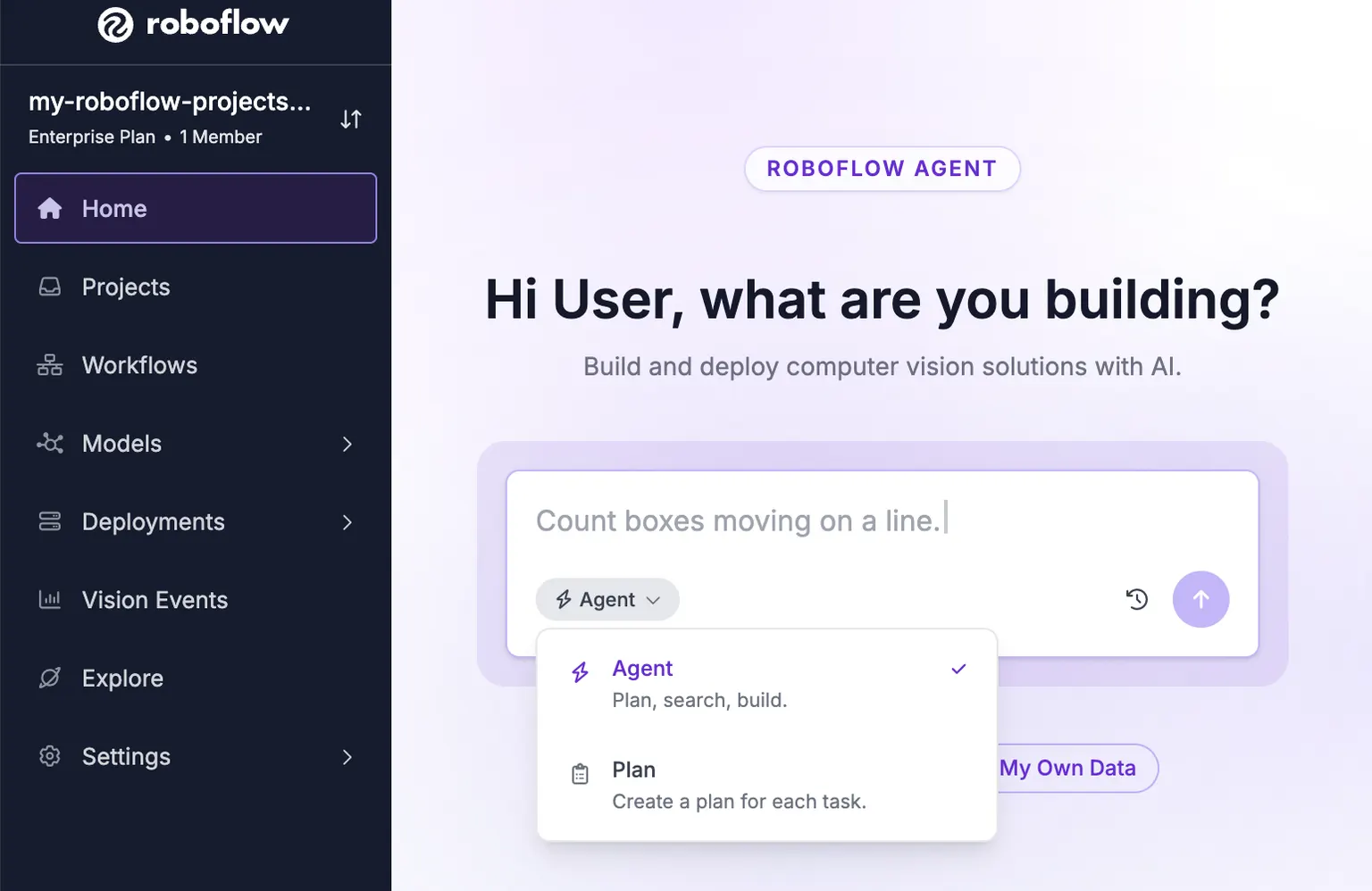
Roboflow Agent has access to your Workspace and can create, edit, run, and debug Workflows. You can also use it to set up Rapid models. Access the Agent by clicking "Agent" in the left sidebar of your workspace.
Capabilities
The Agent can:
- Build Workflows from a natural language description, run them, and auto-fix failures. All input modes are supported: image URLs, RTSP streams, local video, and webcam.
- Watch a video preview while it runs. The Agent tells you when the preview is still starting up and when the stream ends or fails. For webcam and RTSP previews it keeps about the last 2.5 minutes of results, so you can ask what it saw without stopping the stream.
- Understand attached images and videos. You can attach, drag-and-drop, or paste an image or short video into the chat. The Agent analyzes your media to understand what it contains, builds a Workflow informed by it, then re-runs the Workflow on that same media to verify the result.
- Set up and manage Rapid models.
- Manage datasets on request: rebalance a project's train, validation, and test splits or merge projects into a new one. Both run as background tasks you can track in the Activity Center.
- Create a Project from the "+" tab. Click "New model" under "Create", pick a project type, and fill in the rest of the form. The tab turns into the new Project when it is created.
- Start a model training run from a project tab. The "Train" button opens the full training flow (engine, architecture, and version steps) inside the tab, and prepares the dataset export for you.
- Organize open Workflows, Rapid models, usage views, projects, and plans into tabs. Use the "+" tab to reopen closed items or create new ones. Follow-up conversations inherit artifacts from previous chats.
- Open one of your models from the "+" tab. Pick one under "Recent models", or search to see every model in your Workspace. The model stays with the conversation, so it reopens after you reload.
- Open a project tab with a "Dataset" section that groups the project's images by labeling stage (Unassigned, Annotating, Review, Dataset). Open any image in the annotation editor, move a job to its next stage, and approve or reject images under review.
- Open a zone editor to draw detection zones on a Workflow's input image.
- React to UI events: diagnose Rapid training failures, investigate Workflow run errors (via an "Investigate" prompt above the chat input), and continue automatically when a Rapid source Workflow is ready.
- Open a "Historical Usage" tab showing your Workspace's Credit Usage Dashboard with the filters matching your question (timeframe, feature, attribution, cumulative/daily, credits/dollars). The Agent keeps the tab in sync as the conversation continues. Requires the "View Billing" permission.
- Set up Vision Events in your Workflows. When building a Workflow that runs a model, the Agent adds a Vision Events block and configures it with the right Use Case, creating one if needed.
- Open a project tab with a "Settings" section, where you can turn Active Learning on or off for that project and edit its collection limits and conditions.
- Answer questions about your Vision Events data (ex: "how many failures last week?", "which cameras produce the most defects?"). The Agent counts events, tracks pass and fail rates over time, and can sum, average, or find the minimum, maximum, or number of unique values of numeric fields. Totals can be grouped by any field your Use Case records, including custom metadata, or bucketed by day or week (buckets use UTC). If a question reaches past your workspace's retention window, the Agent tells you the earliest date it can query instead of answering zero. Requires the "View Vision Events" permission. See Query Events.
- Draft, preview, and schedule Vision Events Summary Reports from a plain description of the digest you want (ex: "a weekly Friday morning digest of pass and fail counts by line"). The Agent builds the report from fields your events actually send, shows a preview from your real data, and can email it immediately or on the schedule you choose.
- Answer questions about your edge devices with read-only access to your Deployment Manager fleet, configuration, telemetry, logs, events, and streams. Ask about device status or stream errors (ex: "which devices are offline?", "why did this stream error?") instead of clicking through the Deployment Manager. Device credentials are never shared with the Agent.
HTTP API
The Agent API lets you interact with the Roboflow AI agent through api.roboflow.com. You can send natural-language instructions to create or edit Workflows, then publish them when ready. All edits are saved as drafts until you explicitly publish.
Authentication is via API key. If you use a Scoped API Key with folder restrictions, the agent will only be able to access Workflows within that folder scope.
Chat
POST /:workspace/agent/chat
Send a message to the AI agent. The agent can create new Workflows, edit existing ones, and answer questions about your workspace. Workflow changes are saved as drafts.
You can start a new conversation or continue an existing one by passing conversation_id.
Headers
| Name | Value |
|---|---|
| Content-Type | application/json |
Body
| Name | Type | Description | Required |
|---|---|---|---|
api_key | string | Workspace API key. | true |
message | string | The instruction or question for the agent. | true |
conversation_id | string | ID of an existing conversation to continue. Omit to start a new conversation. | false |
mode | string | agent (default) or plan. In plan mode the agent outlines what it would do without making changes. | false |
Example Request
curl -X POST "https://api.roboflow.com/my-workspace/agent/chat" \
  -H "Content-Type: application/json" \
  -d '{
    "api_key": "'"$ROBOFLOW_API_KEY"'",
    "message": "Build me a workflow that detects cars and counts them"
  }'
Response
{
  "text": "I created a workflow called 'Car Counter' that ...",
  "workflows": [
    {
      "id": "wf_abc123",
      "name": "Car Counter",
      "url": "car-counter",
      "specification": { ... }
    }
  ],
  "conversation_id": "conv_xyz789"
}| Field | Description |
|---|---|
text | The agent's response text. |
workflows | Workflows created or modified during this turn. Each includes id, name, url, and the draft specification. |
conversation_id | The conversation ID. Pass this back in subsequent requests to continue the conversation. |
Required scopes: workflow:create and workflow:update.
Publish a Workflow
POST /:workspace/agent/workflows/:workflowUrl/publish
Deploys the latest draft version of a Workflow that was created or edited by the agent. If there is no unpublished draft, the endpoint returns 400.
Example Request
curl -X POST "https://api.roboflow.com/my-workspace/agent/workflows/car-counter/publish?api_key=$ROBOFLOW_API_KEY"Response
{
  "workflowId": "wf_abc123",
  "workflowUrl": "car-counter",
  "versionId": "v-1700000000",
  "status": "published"
}
Required scope: workflow:update.
List Conversations
GET /:workspace/agent/conversations
Returns all agent conversations in the workspace.
Query
| Name | Type | Description | Required |
|---|---|---|---|
api_key | string | Workspace API key. | true |
source | string | Filter by origin: api or web. | false |
workflow | string | Filter by Workflow URL slug. Only returns conversations that reference this Workflow. | false |
Example Request
curl "https://api.roboflow.com/my-workspace/agent/conversations?api_key=$ROBOFLOW_API_KEY&source=api"Response
{
  "conversations": [
    {
      "id": "conv_xyz789",
      "name": "Car Counter",
      "source": "api",
      "workflowIds": ["wf_abc123"],
      "created_on": "2026-05-14T20:00:00.000Z",
      "updated_on": "2026-05-14T20:05:00.000Z"
    }
  ]
}
Required scope: workflow:read.
Get a Conversation
GET /:workspace/agent/conversations/:id
Returns the full conversation including all messages.
Example Request
curl "https://api.roboflow.com/my-workspace/agent/conversations/conv_xyz789?api_key=$ROBOFLOW_API_KEY"Response
{
  "id": "conv_xyz789",
  "name": "Car Counter",
  "type": "agent",
  "source": "api",
  "created_on": "2026-05-14T20:00:00.000Z",
  "updated_on": "2026-05-14T20:05:00.000Z",
  "workflowIds": ["wf_abc123"],
  "messages": [
    {
      "id": "msg_1",
      "role": "user",
      "parts": [{ "type": "text", "text": "Build me a workflow that detects cars" }]
    },
    {
      "id": "msg_2",
      "role": "assistant",
      "parts": [{ "type": "text", "text": "I created a workflow called ..." }]
    }
  ]
}
Required scope: workflow:read.
Error Responses
All endpoints return errors as { "error": "..." } with an appropriate HTTP status code.
| Status | Meaning |
|---|---|
400 | Bad request (missing message, no draft to publish, etc.) |
401 | API key missing or invalid. |
402 | Insufficient credits. |
403 | Insufficient scopes, Workflow outside folder scope, or agent features disabled for this workspace. |
404 | Workflow or conversation not found. |
500 | Internal server error. |
When agent features are disabled at the workspace level, chat and publish endpoints return 403 with "error_type": "AGENT_DISABLED".
MCP Server
Connect your AI agent to the MCP Server and it can hand work to Roboflow Agent with these tools:
| Tool | Description |
|---|---|
agent_chat | Chat with the Roboflow AI agent. |
agent_chat_result | Collect the result of a run that was still working. |
agent_conversations_list | List agent conversations in the workspace. |
agent_conversation_get | Get one conversation with its message history. |
agent_workflow_publish | Publish the latest agent-edited draft of a Workflow. |