Metadata lets you attach custom key-value pairs to images in your Roboflow workspace. Use metadata to store structured information alongside your images - such as capture conditions, device identifiers, quality scores, or any domain-specific attributes - and then search, filter, and organize your data around those attributes.
Overview
Each image can hold any number of metadata entries. An entry is a key (a name like camera_id) paired with a value (a string, number, or boolean).
| Value type | Examples |
|---|---|
| String | location: "warehouse-3", shift: "night" |
| Number | temperature: 72.5, quality_score: 95 |
| Boolean | reviewed: true, is_night: false |
Use cases
- Capture context - record camera ID, GPS coordinates, weather, lighting conditions
- Quality tracking - attach confidence scores, review status, annotator IDs
- Data slicing - filter your dataset by any attribute to build targeted training sets
- External system linking - store identifiers that connect images back to your internal tools
Adding Metadata
You can add metadata to images through the web UI, the Python SDK, the REST API, or automatically via S3 Bucket Mirror.
If your images live in cloud storage like AWS S3, use Datasources and Bucket Mirror so image files and metadata sidecars stay in sync. Signed URL or manual uploads do not provide the same ongoing metadata sync behavior.
Web Application
Open an image
Open any image in your project.
Enter key and value
In the metadata section, enter a key in the first input and a value in the second input.
Add
Press Enter to save or click on Add
Values are automatically parsed by type:
| Value entered | Stored as |
|---|---|
front | "front" (string) |
95 | 95 (number) |
3.14 | 3.14 (number) |
true / false | true / false (boolean) |
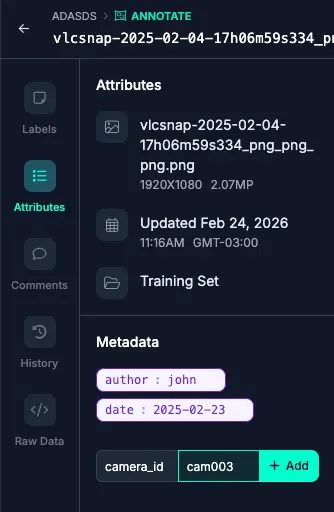
Python SDK
Pass a metadata dictionary when uploading an image:
import roboflow

rf = roboflow.Roboflow(api_key="YOUR_API_KEY")
project = rf.workspace("your-workspace").project("your-project")

project.upload(
    image_path="image.jpg",
    metadata={
        "camera_id": "cam001",
        "location": "warehouse-3",
        "temperature": 72.5,
        "is_night": False
    }
)
CLI
Use the roboflow image metadata command to update metadata and tags on existing images:
# Set metadata on a single image
roboflow image metadata <image_id> -m '{"camera_id": "cam001", "location": "warehouse-3"}'

# Add tags to an image
roboflow image metadata <image_id> --tags "reviewed,v2"

# Remove metadata keys
roboflow image metadata <image_id> --remove-metadata "old_key,deprecated_field"

# Remove tags
roboflow image metadata <image_id> --remove-tags "draft"

# Combine: set metadata, add tags, and remove tags in one call
roboflow image metadata <image_id> -m '{"quality_score": 95}' --tags "reviewed" --remove-tags "pending"

# Batch update multiple images (async)
roboflow image metadata img1,img2,img3 -m '{"batch": "june-2026"}' --tags "processed" --poll
A single image ID updates synchronously. Multiple comma-separated IDs (up to 1,000) use the batch async endpoint. Add --poll to wait for the batch to finish; without it the command returns a taskId you can check later with roboflow asynctasks get <task-id>.
| Flag | Description |
|---|---|
-m, --metadata | JSON string of key-value pairs to set |
--remove-metadata | Comma-separated metadata keys to remove |
--tags | Comma-separated tags to add |
--remove-tags | Comma-separated tags to remove |
--poll / --no-poll | Wait for batch completion (batch mode only) |
--timeout | Polling timeout in seconds (default: 1800) |
REST API
Add metadata during upload
Include a metadata field (JSON-stringified) in the multipart form data when uploading an image:
curl -X POST "https://api.roboflow.com/dataset/your-dataset/upload?api_key=$ROBOFLOW_API_KEY" \
  -F "name=image.jpg" \
  -F "split=train" \
  -F "file=@image.jpg" \
  -F 'metadata={"camera_id":"cam001","temperature":72.5}'
S3 Bucket Mirror
When using Datasources to sync images from an S3 bucket, metadata is imported via JSON sidecar files placed alongside each image. See Datasources for sidecar file format, constraints, and update strategies.
MCP Server
Connect your AI agent to the MCP Server and it can tag images and set metadata on them with these tools:
| Tool | Description |
|---|---|
images_update_metadata | Update metadata and tags on a single image. |
images_batch_update_metadata | Batch-update metadata and tags on multiple images. |
images_search | Find the images you want to update, by tag, class, or metadata. |
Searching by Metadata
Metadata is indexed and searchable in the Asset Library. Use the search bar to filter images by metadata values:
metadata:camera_id="cam001"
metadata:quality_score>80
metadata:reviewed=true
You can combine metadata filters with other search filters:
metadata:location="warehouse-3" AND class:forkliftThe Asset Library also provides autocomplete for metadata keys and values based on what exists in your workspace.
Key Naming Rules
Metadata keys must follow these rules:
| Rule | Detail |
|---|---|
| Allowed characters | Letters (a-z, A-Z), numbers (0-9), underscores (_), dots (.) |
| First character | Must be a letter, number, or underscore |
| Forbidden characters | Forward slashes (/) are not allowed |
Valid keys: camera_id, capture.temperature, _internal_ref, v2_score
Invalid keys: camera/id (contains /), .starts_with_dot (starts with .), has spaces (contains spaces)
Metadata vs. Tags
Both metadata and tags help you organize images, but they serve different purposes:
| Tags | Metadata | |
|---|---|---|
| Structure | Simple labels | Key-value pairs |
| Values | No value, just a name | String, number, or boolean |
| Best for | Categorization, workflow status | Structured attributes, measurements |
| Example | reviewed, v2, needs-annotation | temperature: 72.5, camera_id: "cam001" |
You can use both on the same image. For example, tag an image as reviewed and also store reviewer: "alice" and confidence: 0.95 as metadata.