Roboflow provides an image tagging feature. This feature allows you to assign tags to images during upload. You can use these tags for batch assignment for labeling, enabling greater precision when assigning images for labeling. Furthermore, you can use image tags as a parameter in the Roboflow dataset search associated with your dataset.
Assigning a Tag During Upload
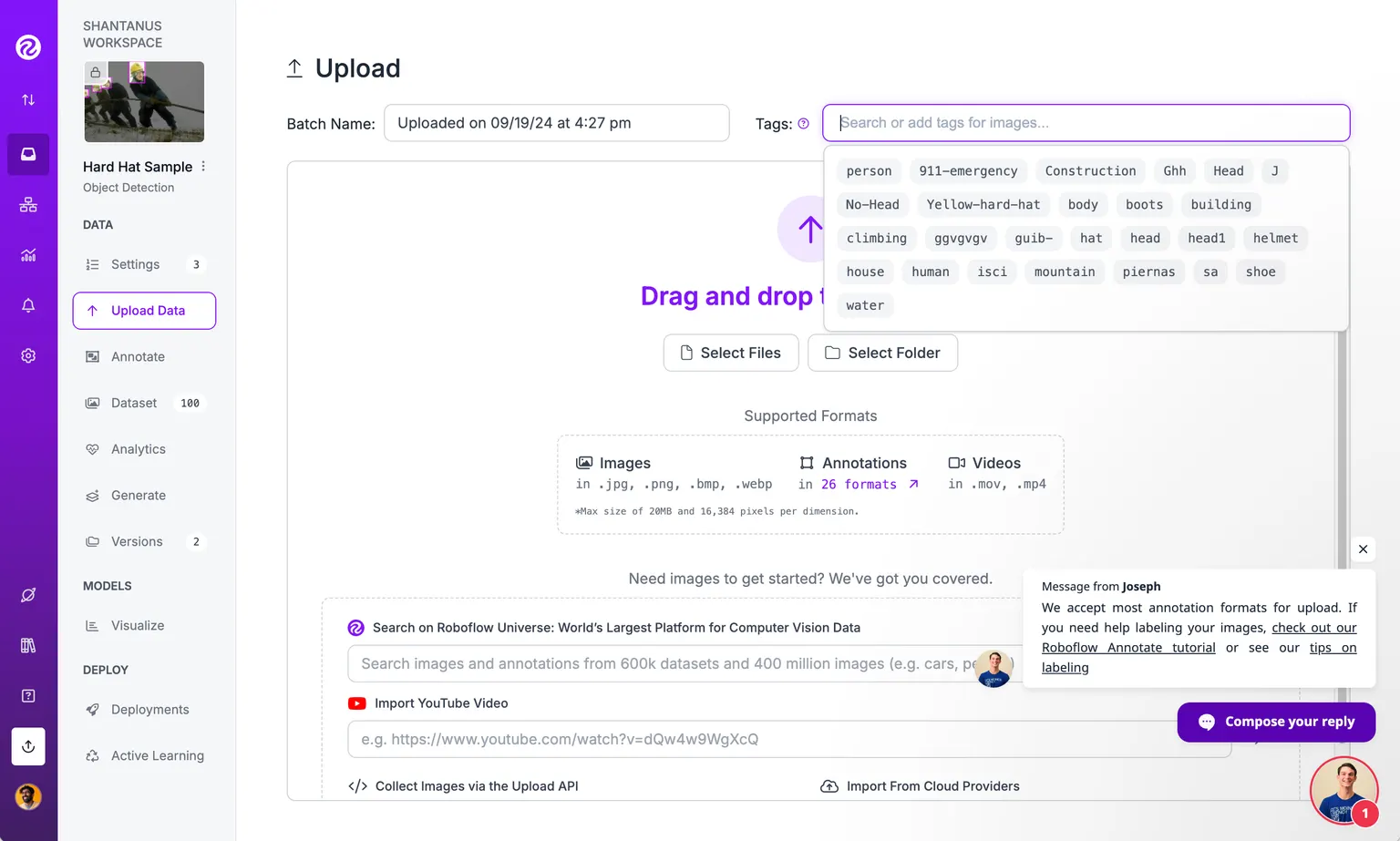
You can assign tags during data upload both in the web interface and using the REST API and Python SDK. The image below shows how to specify tags to associate with images uploaded using the web interface:
CLI
You can add and remove tags on existing images using the roboflow image metadata command:
# Add tags to an image
roboflow image metadata <image_id> --tags "reviewed,v2"

# Remove tags from an image
roboflow image metadata <image_id> --remove-tags "draft,needs-review"

# Add and remove tags in one call
roboflow image metadata <image_id> --tags "approved" --remove-tags "pending"

# Batch update tags on multiple images
roboflow image metadata img1,img2,img3 --tags "processed" --poll
You can also pass tags during upload with roboflow image upload:
roboflow image upload photo.jpg -p my-project --tag "review,v2"Apply Tags in the Images Tab
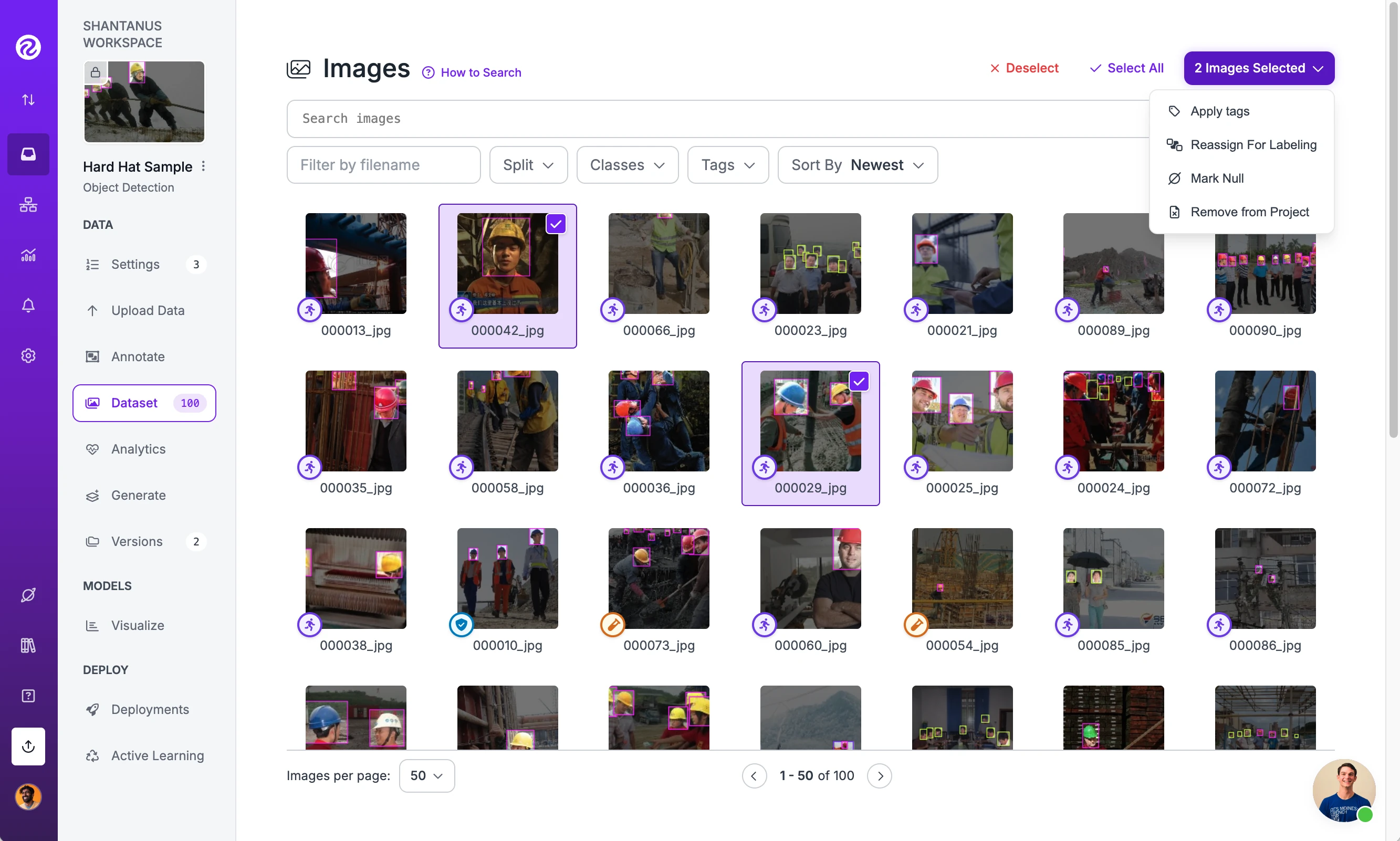
To apply tags in the Image tab, click on the images to which you want to apply tags, click the "Images Selected" button in the top right corner of the page, and then click "Apply tags". This will allow you to add an arbitrary number of tags to the selected images.
Rename or Delete Tags Across a Project
To rename or delete tags across all images in a project, open the "Tags" tab in the project "Settings" page.
- Select the tags you want to modify using the checkbox column.
- Click "Rename" or "Delete" in the toolbar.
- For renames, enter the new name for each tag, click "Review Changes", then "Confirm Changes".
- For deletes, review the list and confirm.
Filter Images by Tag
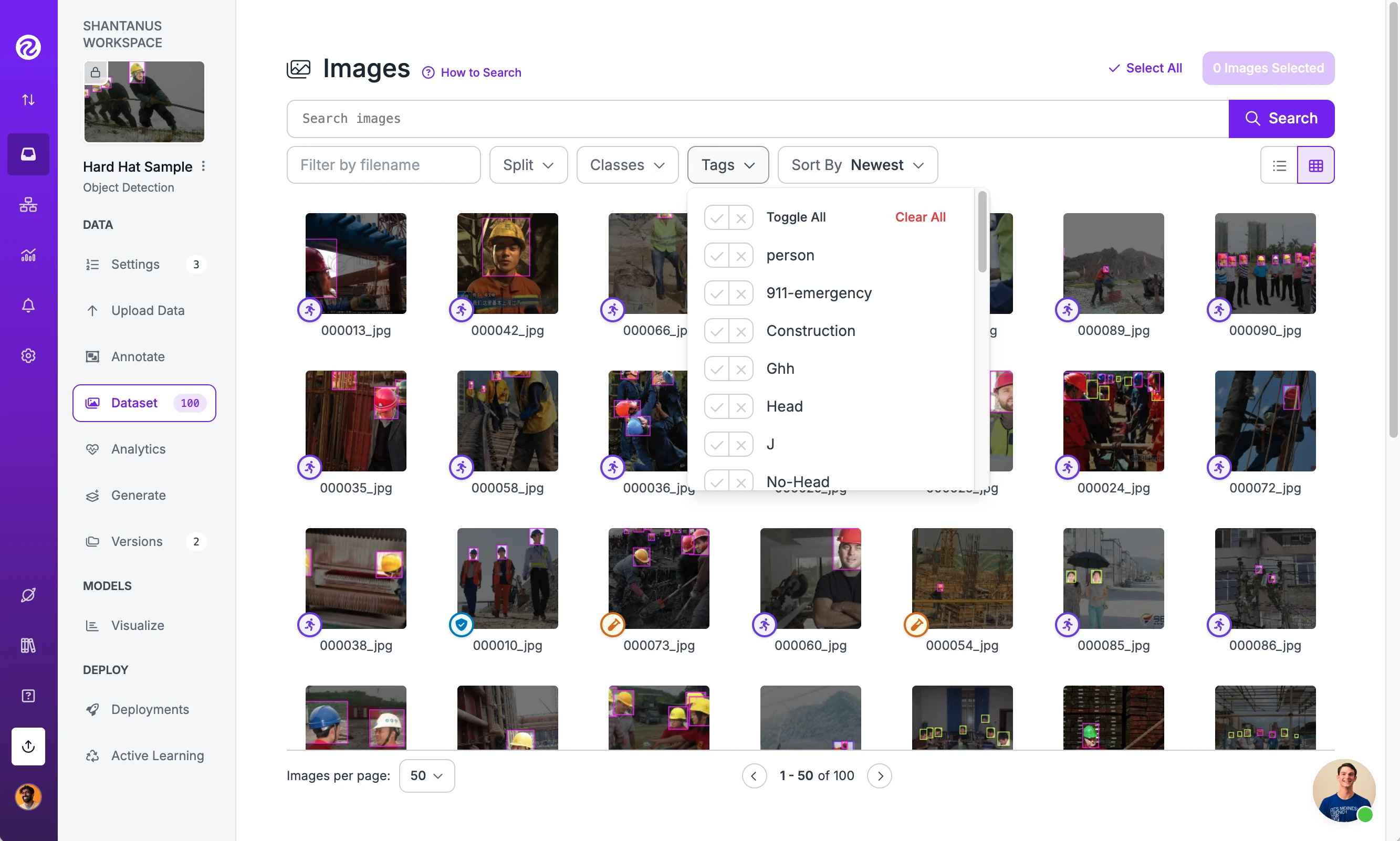
You can filter images using tags in the Assign page on the Roboflow dashboard:
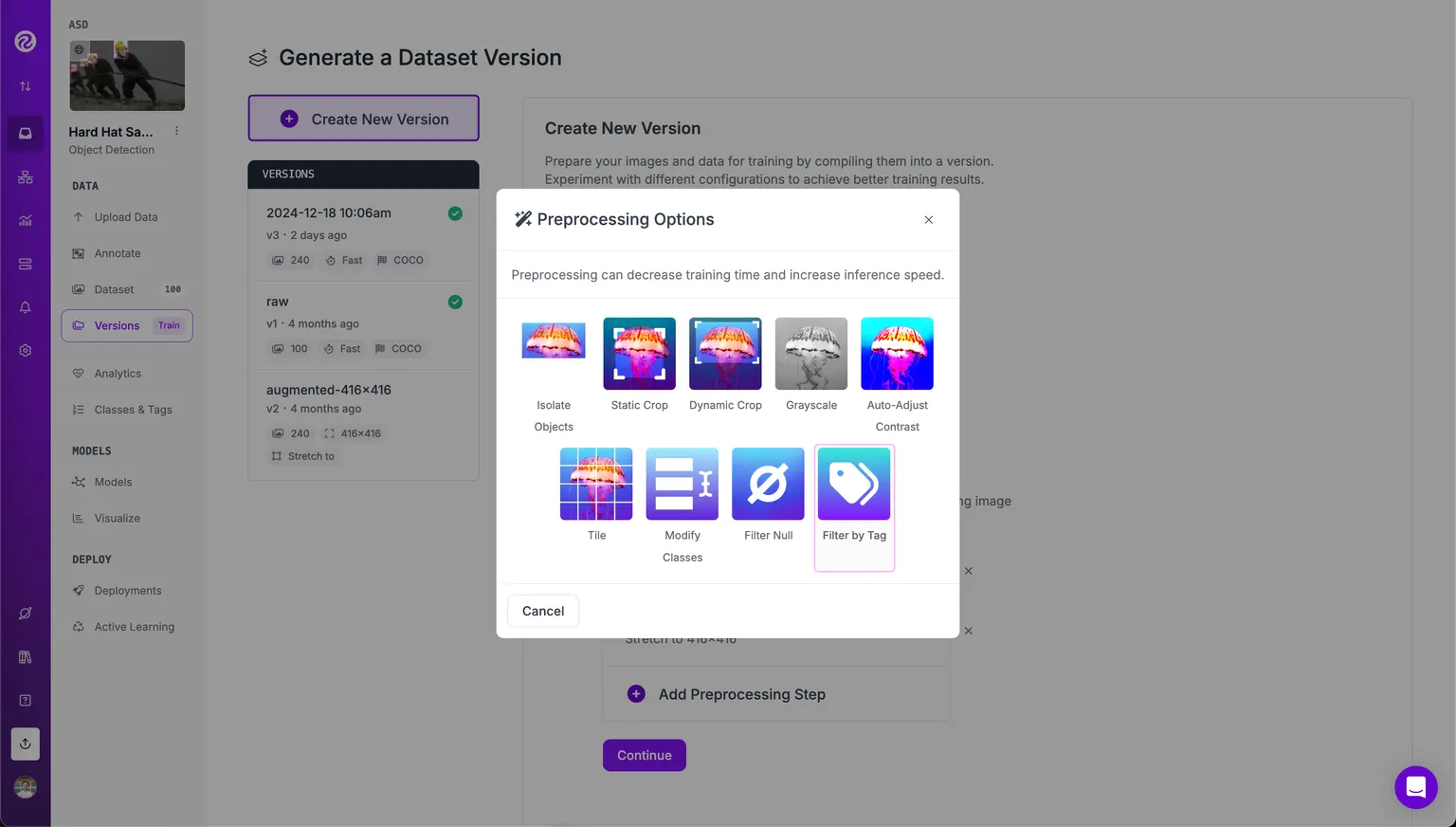
Use Tags to Curate Data in Versions
The Filter by Tag preprocessing step allows you to create Versions of your dataset that include or exclude specific data. Use this preprocessing step to train or export only a curated slice of your data.